
There’s a specific kind of panic that sets in when you press the power button on your laptop, and absolutely nothing happens. No lights, no fan spin, no display — just silence. If your Lenovo LOQ 15 won’t turn on, take a breath before assuming the worst. In a large number of cases, this issue is fixable without a trip to a repair shop. Here’s a structured way to work through the problem, starting with the simplest explanations and moving toward the more serious ones.
Step 1: Confirm It’s Actually a Power Issue, Not a Display Issue
Before troubleshooting power problems, rule out the possibility that the laptop is actually turning on, but the screen just isn’t displaying anything. Press the power button and listen and feel closely: do you hear fans spinning up, see any LED lights near the power button or charging port, or feel any warmth building up after a minute or two? If any of these signs are present, your laptop is likely powering on but experiencing a display problem rather than a true power failure, which is a different troubleshooting path (often related to display drivers, external monitor conflicts, or a faulty screen connection).
If there’s genuinely no sign of life at all — no lights, no sound, no warmth — proceed with the steps below.
Step 2: Check the Power Source and Charger
This sounds obvious, but it’s the most common culprit and the easiest to overlook when you’re stressed about a “dead” laptop.
- Confirm the wall outlet itself is working by plugging in another device.
- Inspect the charging cable and adapter brick for any visible damage, fraying, or bent pins.
- Make sure the charger is fully and securely connected at both the wall and the laptop’s charging port.
- Try a different outlet entirely, since some outlets are controlled by wall switches that may be off, or may be on a circuit that’s tripped.
- If you have access to another Lenovo charger with matching wattage, try it to rule out a faulty adapter.
If the charging port itself feels loose or wiggly, that’s a sign of a potential hardware connection issue that may need professional repair rather than something you can fix through basic troubleshooting.
Step 3: Perform a Hard Reset (Power Drain)
This is one of the most effective fixes for laptops that won’t power on, and it works by clearing any residual electrical charge that can sometimes cause a laptop to become unresponsive.
- Unplug the charger completely from the laptop.
- If your specific LOQ 15 configuration has a removable battery (many modern gaming laptops don’t, but it’s worth checking your model), remove it.
- Press and hold the power button for around 30 seconds. This drains any residual power sitting in the capacitors.
- Reconnect the charger (and battery, if removed).
- Try powering on the laptop again.
This simple process resolves a surprising number of “won’t turn on” cases, particularly when the laptop had been left in a sleep or hibernation state that became corrupted.
Step 4: Check for a Battery Charge Indicator Light
Most Lenovo LOQ 15 models have a small LED light near the power button or on the side of the chassis that indicates charging status, even when the laptop itself won’t boot. Plug the charger in and check whether this light turns on.
- If the light comes on, it suggests the battery is receiving power, and the issue may be with the boot process rather than power delivery entirely.
- If the light doesn’t come on at all even after several minutes of charging, this points more strongly toward a charger, port, or battery problem.
Leave the laptop charging for at least 30 minutes to an hour before attempting to power on again, since a completely drained battery sometimes needs a brief charging period before it can power the system enough to boot.
Step 5: Disconnect External Devices
External peripherals — USB drives, external monitors, docking stations, or even certain USB hubs — can occasionally interfere with the boot process, particularly if one of them has a fault or is drawing power incorrectly.
Disconnect everything plugged into the laptop except the charger itself, then attempt to power it on. If it boots successfully, reconnect peripherals one at a time to identify which one, if any, was causing the conflict.
Step 6: Listen and Watch Very Closely During a Power Attempt
When you press the power button, pay close attention to subtle signs of activity:
- Do the fans spin briefly and then stop?
- Do you hear any beeping sounds?
- Does the keyboard backlight (if your model has one) flash briefly?
- Does the screen show any flicker, even briefly, before going dark again?
These small clues matter because they help distinguish between a laptop that’s attempting to boot and failing partway through (which often points to a RAM, storage, or software issue) versus a laptop with no power delivery at all (which points more toward the charger, battery, or motherboard).
Step 7: Reseat the RAM (If Your Model Allows Access)
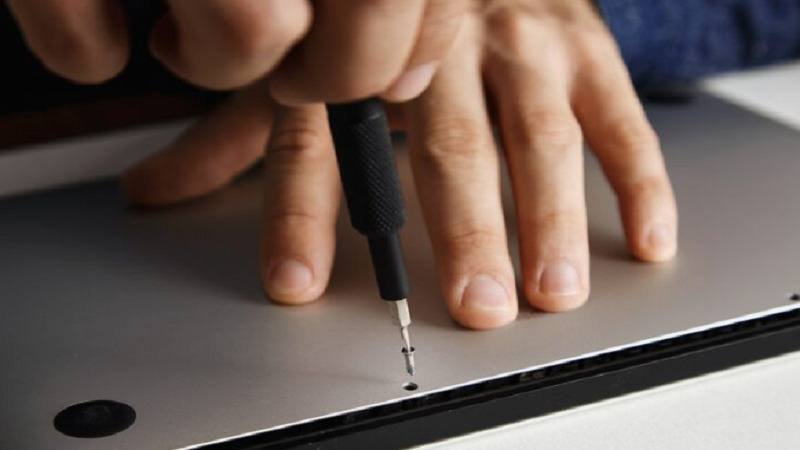
If your LOQ 15 has a user-accessible bottom panel and you’re comfortable opening it, a loose or improperly seated RAM stick can sometimes prevent a laptop from powering on or booting properly, especially after transport or if the laptop was recently serviced.
- Power off and fully unplug the laptop, and remove the battery if possible.
- Ground yourself to avoid static damage (touching a metal surface works in a pinch).
- Open the bottom panel following Lenovo’s official disassembly guidance for your specific model.
- Gently remove and reseat the RAM module(s), making sure they click firmly into place.
- Reassemble and attempt to power on.
If you’re not confident doing this yourself, it’s safer to have a technician perform this step, especially if the laptop is still under warranty, since improper disassembly can sometimes void coverage.
Step 8: Consider Whether Recent Events Line Up
Think back to what happened right before the laptop stopped turning on. Did it get dropped, exposed to liquid, overheat significantly, or lose power unexpectedly during a Windows update or BIOS update? Each of these scenarios points toward different likely causes:
- Liquid exposure often causes internal short circuits and usually requires professional repair.
- A failed update (especially BIOS) can sometimes cause a laptop to become unresponsive, and some Lenovo models have a BIOS recovery key combination that can help, though this varies by model and is worth checking Lenovo’s official support documentation for your specific configuration.
- A hard drop can dislodge internal components or damage the motherboard, which typically requires professional diagnosis.
When to Contact Lenovo Support or a Repair Technician
If you’ve worked through all the steps above and the laptop still shows no signs of life, it’s time to involve professional support. This is especially true if:
- The laptop is still under warranty (attempting further disassembly yourself could void it).
- You’ve noticed physical damage, liquid exposure, or a burning smell at any point.
- The charging indicator light never illuminates despite trying multiple outlets and chargers.
- You’re not comfortable opening the chassis yourself for further diagnosis.
Lenovo’s official support channels can run deeper diagnostics, and if your unit is within its warranty period, repairs or replacement may be covered at no additional cost. Trying to force a fix on a laptop with a genuine hardware fault, particularly on a motherboard or power delivery component, is rarely something that’s safely fixable at home.
Final Thoughts
A Lenovo LOQ 15 that won’t turn on is alarming, but it’s rarely an immediate sign that the laptop is beyond saving. Most cases trace back to something fixable — a faulty charger, a drained battery needing time to recharge, a residual power glitch resolved by a hard reset, or a loose internal connection. Working through these steps methodically, starting with the simplest and most common causes, resolves the majority of power-on issues without needing a repair shop. If you do reach the point where professional help is necessary, having already ruled out the simple explanations will make the diagnostic process faster and more straightforward. See more